
Market Trends
RentOk AutoPay & e-NACH for Automatic Rent Collection

Written by
Shivanshi Dheer
Read Time
11 min read
Posted on
October 6, 2026
Overview
Overview
RentOk AutoPay & e-NACH for Automatic Rent Collection
For most PG, hostel and co-living operators, the first week of every month is spent collecting rent. It involves repeated reminders, follow-up calls, promises of payment that slip by a few days, and manual updates to registers or spreadsheets.
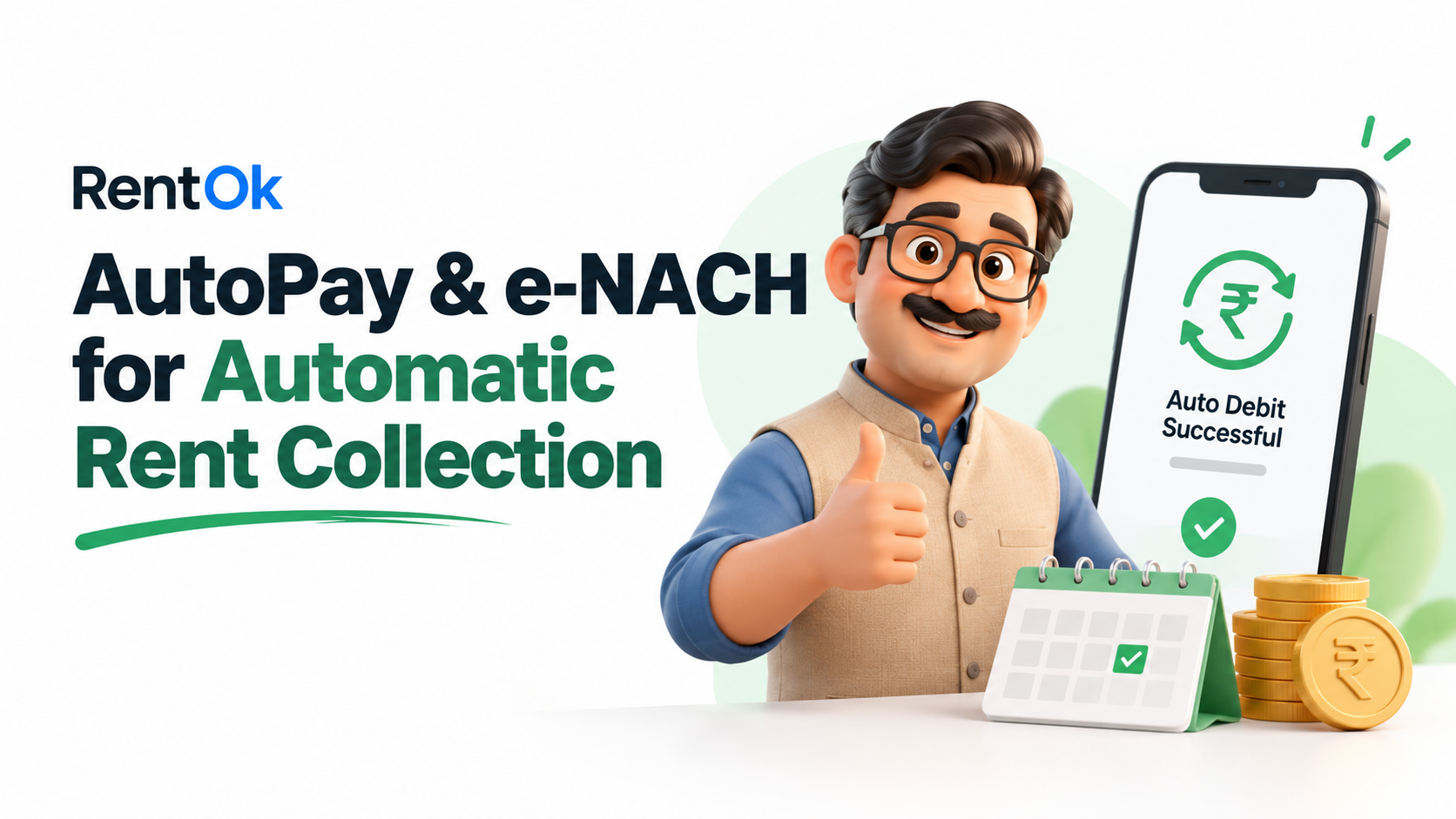
RentOk AutoPay ends that routine. Your tenant approves rent payments once, and from then on, rent moves from their bank account to yours on the date they chose. No calls, no chasing, and nothing for anyone to remember.
This guide covers everything about AutoPay on RentOk: what it is, why we built it, how owners turn it on, how tenants set it up, what happens every month, and answers to the questions people most often ask about UPI AutoPay and e-NACH.
What is RentOk AutoPay?
RentOk AutoPay is automatic rent collection built into RentOk. It works the same way as a Netflix subscription, an SIP or an EMI: the tenant gives a one-time approval, called a mandate, and payments happen on their own after that.
RentOk uses two kinds of mandate, depending on how much the tenant pays each month:
- UPI AutoPay, for monthly dues up to ₹15,000. The tenant approves it once in the UPI app they already use, such as PhonePe, Google Pay, Paytm or BHIM, with their UPI PIN.
- e-NACH, for monthly dues above ₹15,000. This is a mandate on the tenant’s bank account, approved through net banking or a debit card. It suits higher rents because it isn’t bound by UPI’s limits.
In both cases, the tenant approves once, can see the mandate at any time, and can pause or cancel it themselves. The owner sees every payment in RentOk as soon as it lands. If you’re new to the concept, our explainer What Is Autopay for Rent Collection? covers the basics.
Why we built AutoPay
We talk to PG owners every day, and the same problems come up again and again. Collecting rent is not hard because tenants don’t want to pay. It’s hard because paying on time depends on someone remembering, every single month.
Here are the problems AutoPay is built to solve:
- Chasing rent every month. Owners and managers spend the first 7 to 10 days of the month sending reminders and making calls. With 30, 50 or 100 beds, that becomes a part-time job.
- Late and missed payments. Most late rent isn’t refusal. Tenants forget, get busy, or wait for their salary and then lose track.
- Unpredictable cash flow. When rent trickles in over two weeks, paying staff, vendors, electricity and loan EMIs on time becomes stressful.
- Awkward conversations. Repeated reminders strain the owner-tenant relationship, and no one enjoys being the person who asks for money.
- Manual record-keeping. Matching UPI screenshots and bank entries to the right tenant and the right month takes time and leads to mistakes.
AutoPay takes the “remembering” out of rent. Tenants decide once, and the system handles every month after that.
How owners turn on AutoPay
Setting up AutoPay for a property takes about a minute in the RentOk Manager app.
- Open Dues & Payment Settings. Go to your property’s settings and tap Dues & Payment Settings. You can also type “autopay” in the settings search bar to jump straight there.
- Tap Enable AutoPay. At the top of the page you’ll see the “Never miss rent with AutoPay” card. Tap it to open the AutoPay screen, which explains the benefits, and tap Enable AutoPay.
- Choose your AutoPay settings.
- Enable AutoPay: switches AutoPay on for this property.
- AutoPay mandatory: turn this on if you want every tenant to set up AutoPay.
- Eligible for tenants joined since: choose “Beginning” to include all current tenants, or pick a date to include only tenants who joined after it.
- Decide who pays the fees. Under Payment Setup, choose who covers the one-time setup fee and the monthly fee for each tenant.
- Save. RentOk confirms that the settings have been updated for your property.
- Send reminders to your tenants. RentOk immediately offers to remind all your tenants to set up AutoPay in one go, so you don’t have to message anyone individually.
- Copy to other properties. If you manage more than one property, tap Copy Settings to Properties to apply the same AutoPay setup everywhere.
Once saved, an AutoPay Details card in your settings shows the current setup at a glance: whether AutoPay is on, whether it’s mandatory, who pays the fees, and which tenants are eligible. For help with your other dues and payment settings, such as partial payments, late fines and bank accounts, see the Payment Management tutorials on RentOk University.
How tenants set up AutoPay
Tenants can set up AutoPay during online check-in, or later from the link RentOk sends them on WhatsApp. It takes a couple of minutes and doesn’t need any app download.
- Open the check-in or AutoPay link. At check-in, the tenant goes through five quick steps: Property Details, Tenant Verification, Setup Payment, Move-In Checklist and Rental Agreement. AutoPay is set up in the Setup Payment step.
- Choose what AutoPay should pay.
- Pay all dues (recommended): AutoPay covers everything due each month, such as rent plus electricity or other regular charges, so the tenant never has to pay anything separately.
- Pay rent only: AutoPay covers just the monthly rent, and the tenant pays other dues themselves.
- Pick the AutoPay date. The tenant chooses the day of the month the payment should go out, within the window their property allows around the rent due date. Choosing a day before the due date simply pays rent early.
- Choose how to pay.
- A UPI app: PhonePe, Google Pay, Paytm or BHIM. RentOk remembers the choice, and it can be changed later.
- Share QR, for someone else to approve: useful when a parent or family member pays the rent. They scan the QR and approve from their own UPI app.
- Use a bank account instead (e-NACH): for monthly amounts above ₹15,000, or for tenants who prefer to authorise through their bank.
- Tap Set up AutoPay and approve in the UPI app. The UPI app opens with the mandate details. The tenant checks them and approves with their UPI PIN.
What the tenant sees in their UPI app
The approval screen in Google Pay, PhonePe or Paytm shows a few details that are worth explaining up front:
- Amount to be paid in the setup: ₹1. A one-time ₹1 payment verifies the account and activates the mandate. Only ₹1 is deducted at this stage.
- Maximum amount that can be deducted automatically: the ceiling for any single debit. AutoPay can never take more than this in one payment.
- Payment can be deducted: “Anytime”: this is standard wording for mandates where the amount or date can vary. In practice, RentOk only debits on the tenant’s chosen date, and always sends a notice 24 hours before.
- Start and end date: how long the mandate stays valid. The tenant can still pause or cancel at any time.
After approval, AutoPay is active. Tenants who set it up also earn Rent Coins, which can be redeemed for gift vouchers and cashback.
What happens every month
Once AutoPay is active, every month follows the same automated process:
- Bill is ready. RentOk prepares the month’s dues for the tenant, as it does today.
- Advance notice. The tenant gets a notification 24 hours before the debit, showing the amount, so there are no surprises.
- Rent is debited. On the chosen date, the amount moves from the tenant’s bank account to the owner’s.
- Marked paid automatically. RentOk matches the payment to the right tenant, bed and month, and the tenant receives a receipt.
- Owner sees it live. The owner can see who has paid, who is pending and whose payment failed, across every property, in real time.
If a debit fails, for example because of low balance, the tenant and owner are both informed, and the tenant can clear the dues through a payment link. The owner never has to work out on their own who has or hasn’t paid.
UPI AutoPay vs e-NACH
Both do the same job. The right one depends on the monthly amount and how the tenant prefers to authorise.
| UPI AutoPay | e-NACH | |
|---|---|---|
| Best for | Monthly dues up to ₹15,000 | Monthly dues above ₹15,000 |
| How it’s approved | Once, in any UPI app, with the UPI PIN | Once, through net banking or a debit card |
| Time to activate | Instant | As soon as the bank verifies the mandate |
| Where the tenant manages it | AutoPay or Mandates section of their UPI app | Their bank’s net banking or app |
| Advance notice before each debit | Yes | Yes |
| Pause or cancel | Anytime | Anytime, through the bank |
For tenants with higher rent, e-NACH avoids the extra authentication UPI asks for on large debits, so the payment goes through without the tenant having to act each month. Because e-NACH takes a little longer to activate, it’s best set up a few days before the first rent date.
Benefits for owners and tenants
For owners and managers
- Rent on time, every month. Payments arrive on a fixed date instead of trickling in over two weeks.
- Predictable cash flow. You know what’s coming in and when, so planning salaries, bills and EMIs gets easier.
- No more chasing. Reminders, debits and receipts run on their own. Your team gets those hours back.
- Automatic records. Every payment is matched to the right bed and month, with no screenshots to check.
- Easy to manage at scale. Turn it on for one property, then copy the settings to the rest in a tap.
For tenants
- Never miss a due date. No late fees from forgetting, and no awkward reminder calls.
- Full control. Tenants choose the date, see the maximum limit, get notice before every debit, and can pause or cancel anytime.
- Uses the app they already have. No new app or wallet. It works with PhonePe, Google Pay, Paytm, BHIM or the tenant’s bank account.
- Family can pay. Parents or relatives can approve the mandate from their own phone with the Share QR option.
- Rewards. Tenants earn Rent Coins for setting up AutoPay, redeemable for vouchers and cashback.
Make this the last month you chase rent
Rent collection shouldn’t depend on reminders, follow-ups and good memory. With RentOk AutoPay, tenants approve once and every month after that runs on its own: notice before the debit, rent on the chosen date, receipt and records updated automatically.
If you already use RentOk, open Dues & Payment Settings in the Manager app and turn on AutoPay for your property today. Then send reminders to your tenants in one tap. New to RentOk? Visit the RentOk AutoPay page to book a demo, and our team will help you set it up.
Frequently Asked Questions
Find answers to common questions about this topic
About the Author
Shivanshi Dheer
Shivanshi Dheer sharing actionable strategies and information on PG/hostel management to help simplify renting and scale with RentOk.
You may also like these
Related Articles
1 min read
How to Avoid MDR on Rent Payments: A Guide for PG Owners
Written by
Posted on
Shivanshi Dheer
Oct 6, 2026
1 min read
What’s Included in My Rent and What Am I Paying Extra For?
Written by
Posted on
Ishika Pannu
Sep 30, 2026

1 min read
Which Indian City Gives Landlords the Best Rental Yield Right Now?
Written by
Posted on
Ishika Pannu
Sep 28, 2026
1 min read
How Much Can My Landlord Legally Increase My Rent Each Year?
Written by
Posted on
Ishika Pannu
Sep 23, 2026

1 min read
India’s Rental Market Grows 16%: What Owners Should Know
Written by
Posted on
Ishika Pannu
Sep 22, 2026
1 min read
Why Landlords Check CIBIL Scores Before Renting
Written by
Posted on
Ishika Pannu
Sep 21, 2026
1 min read
Why Students Need Tenant Verification Done Before Moving Into a PG
Written by
Posted on
Ishika Pannu
Sep 14, 2026
1 min read
What to Do When Your Landlord Won’t Make Repairs
Written by
Posted on
Ishika Pannu
Sep 12, 2026

1 min read
Satya Niketan Building Collapse: What Happened in Detail?
Written by
Posted on
Shivanshi Dheer
Sep 9, 2026
1 min read
Why Your Rent Agreement Must Be Registered – And How to Do It
Written by
Posted on
Shivanshi Dheer
Aug 21, 2026
Stay ahead in property management with expert insights
Join thousands of property managers receiving exclusive tips delivered straight to your inbox.
Browse posts by category
Case Study
Cost of Living
Growth
Legal
Market Trends
News
Pg owner app
Property Management
Property Tax
Tech
RentOk
The easiest way to rent and manage your PGs and hostels.
Grievance Officer
Get the app


Contact us
hello@eazyapp.tech
HQ Office
COGROW, BASEMENT F-12/8A
BESIDE HOUSE OF STYLE SALON, SECTOR 28, DLF PHASE 1
GURUGRAM, HARYANA - 122002
South India Office
LUMIODESK COWORKING, 2ND FLOOR, 40, 14TH MAIN RD
BESIDE MC DONALD, 7TH SECTOR, HSR LAYOUT
BENGALURU, KARNATAKA - 560102
©️ 2026 EazyApp Tech Pvt Ltd. All rights reserved


